Claude Code
Claude Code is Anthropic’s coding assistant that runs in your terminal. It can read files, edit code, run commands, and iterate on a task until you stop it or it finishes.
What It Does Well
Section titled “What It Does Well”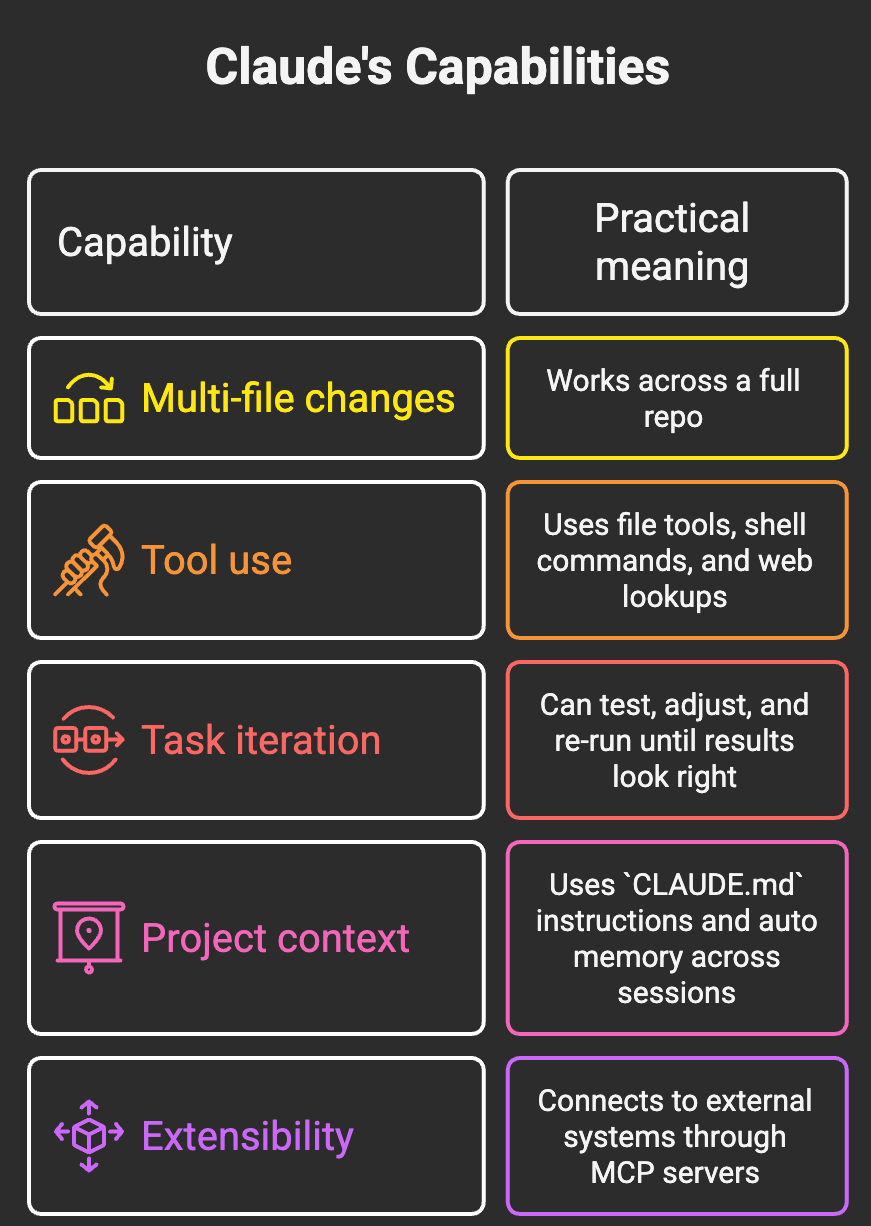
How It Works
Section titled “How It Works”Claude Code follows an agent loop: gather context, take action, verify, repeat.
flowchart TD
    A["You send a prompt"] --> B["Gather context"]
    B --> C["Take action"]
    C --> D["Verify results"]
    D --> E{"Done?"}
    E -->|No| B
    E -->|Yes| F["Return final result"]
In practice, that means it may search files, inspect code paths, edit files, run tests, and then iterate.
Context Gathering
Section titled “Context Gathering”Claude Code usually explores a codebase on demand using file search and reads, then loads what it needs into context. It is not limited to a pre-selected set of files.
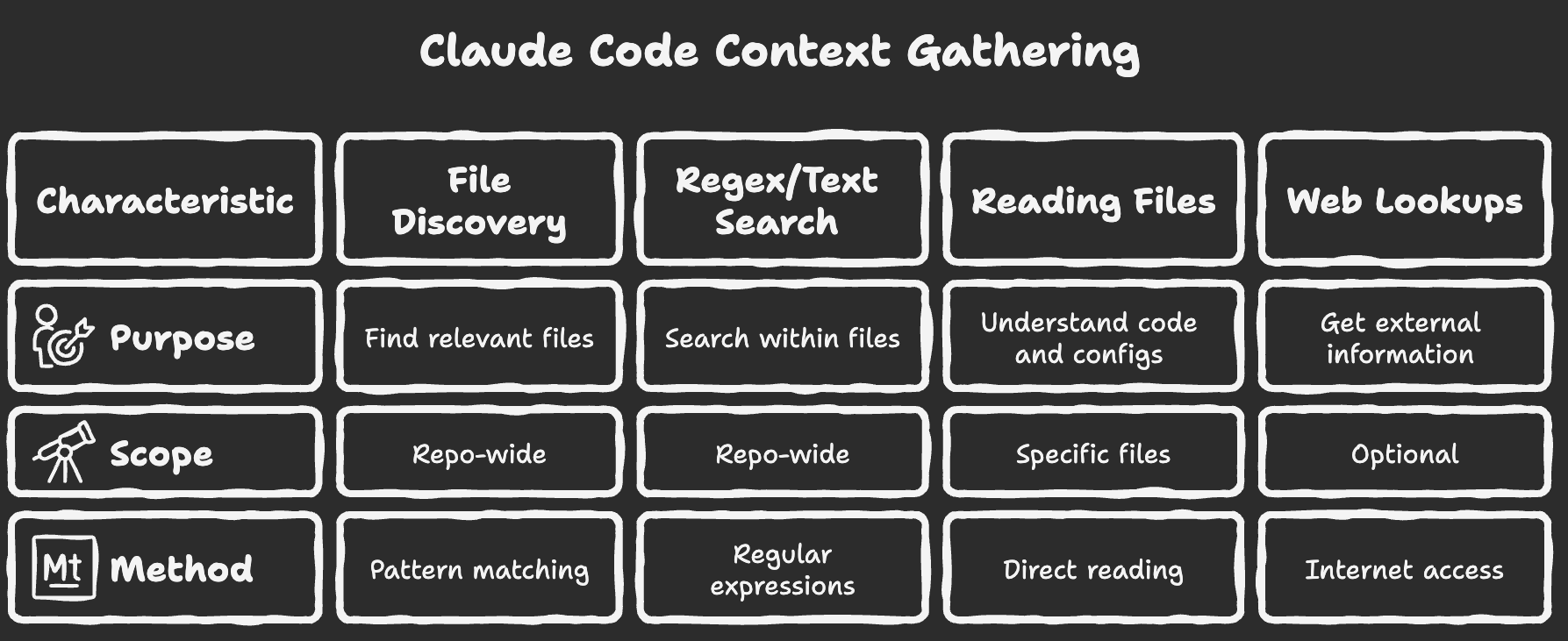
Use @ to pin specific files or folders into context upfront rather than letting Claude search:
@src/api/auth.py explain how token refresh works@frontend/ what components handle routing?Tab-complete works for filenames. This is more efficient when you already know which files are relevant.
Built-in Tool Categories
Section titled “Built-in Tool Categories”| Category | Examples |
|---|---|
| File operations | Read, create, edit, rename files |
| Search | Find files, grep/regex style lookup |
| Execution | Run tests, scripts, git commands |
| Web | Look up docs or troubleshooting info |
| Orchestration | Use subagents for parallel work |
Common Use Cases
Section titled “Common Use Cases”| Use case | Example prompts |
|---|---|
| Codebase orientation | ”Explain auth flow in this repo” |
| Feature work | ”Add rate limiting to this endpoint and add tests” |
| Debugging | ”Investigate this stack trace and fix root cause” |
| Refactoring | ”Rename this API and update all references” |
| Review support | ”Review this diff for regressions and missing tests” |
Memory And Project Instructions
Section titled “Memory And Project Instructions”Claude Code uses two memory layers:
CLAUDE.mdfiles that you write (project/team/user guidance)- Auto memory that Claude writes based on repeated corrections/preferences
Where CLAUDE.md can live
Section titled “Where CLAUDE.md can live”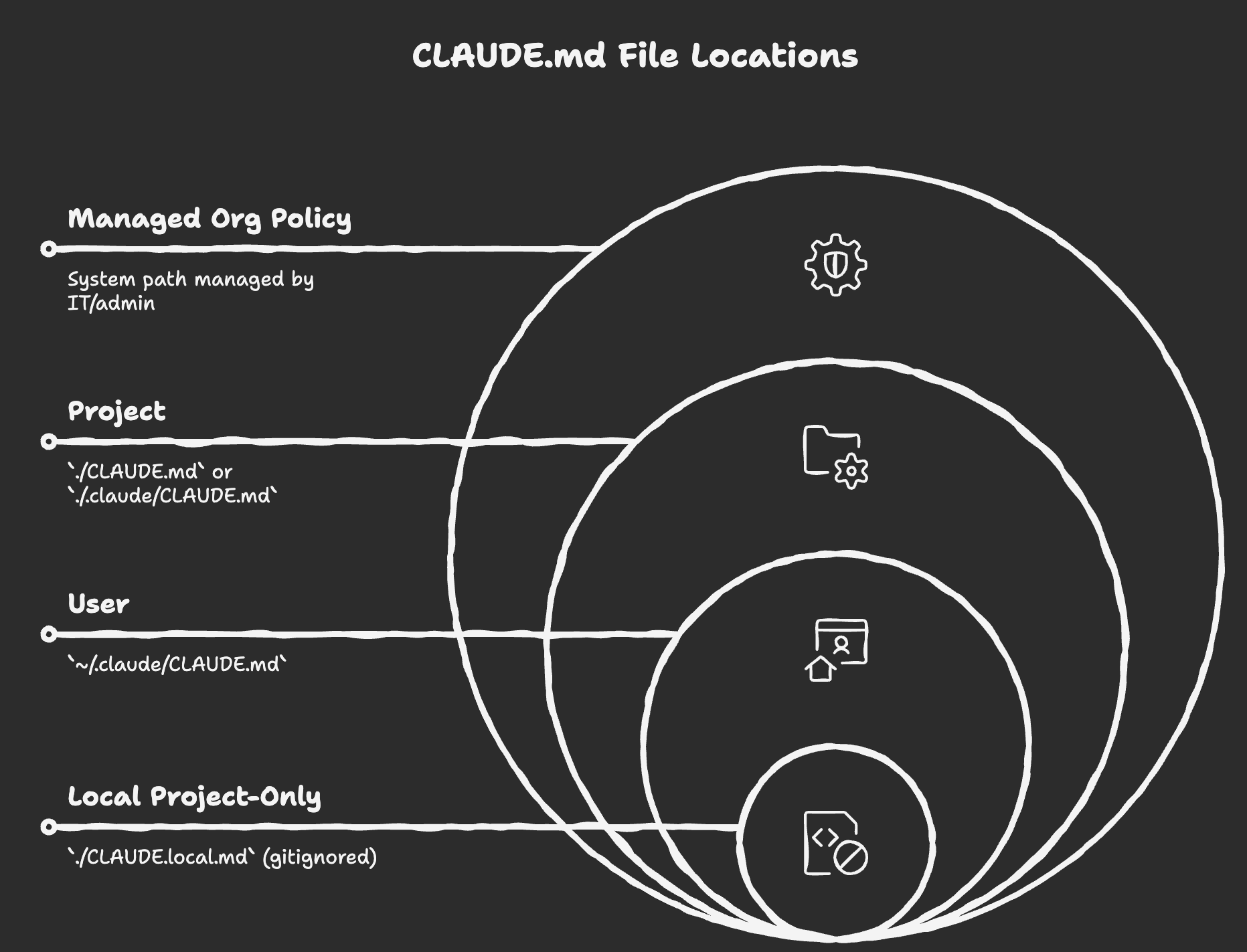
Claude also loads CLAUDE.md and CLAUDE.local.md files while walking up the directory tree from your current working directory, and can load subtree-specific guidance when working in those folders.
Useful commands for memory/context
Section titled “Useful commands for memory/context”| Need | Command |
|---|---|
| Create starter project guidance | /init |
| View/edit loaded memory files | /memory |
| Start fresh conversation | /clear |
| Compact long history | /compact |
| Resume older conversation | /resume |
Initializing with /init
Section titled “Initializing with /init”Running /init scans your project and generates a CLAUDE.md tailored to it. The output typically includes:
- Project overview and tech stack
- Architecture summary (sometimes with an ASCII diagram)
- Common dev commands (run, test, lint)
- Key components and directories to know about
[!TIP] Run
/initwhen first opening an unfamiliar repo. Claude reads config files and key source files to build an accurate starting picture—edit the result to correct anything it missed.
You can nest CLAUDE.md files in subdirectories (e.g. /backend, /frontend, /docs) for more specific guidance in those areas. All applicable files load automatically based on which directory Claude is working in.
MCP (Model Context Protocol)
Section titled “MCP (Model Context Protocol)”Claude Code supports MCP for connecting tools and data sources (issue trackers, docs, databases, monitoring systems, etc.).
# Local stdio serverclaude mcp add my-server -- /path/to/server
# Remote HTTP serverclaude mcp add --transport http my-server https://example.com/mcp
# Remote SSE serverclaude mcp add --transport sse my-server https://example.com/sse
Use /mcp inside Claude Code to manage connections and authentication.
Example — Playwright for browser automation: With Playwright MCP connected, Claude can drive a browser session, inspect pages, and take screenshots as part of debugging or testing workflows.
claude mcp add playwright -- npx @playwright/mcp@latestOnce connected, you can ask Claude to navigate your app, reproduce UI issues, and propose or apply fixes.
Installation
Section titled “Installation”As of April 20, 2026, Anthropic recommends native installers first.
# macOS / Linux / WSL (recommended)curl -fsSL https://claude.ai/install.sh | bash
# Windows PowerShell (recommended)irm https://claude.ai/install.ps1 | iex
# Alternativesbrew install --cask claude-codewinget install Anthropic.ClaudeCode
npm install -g @anthropic-ai/claude-code still exists for compatibility, but it is no longer the primary recommendation.
Then start in your project:
claudeAccess And Cost Notes
Section titled “Access And Cost Notes”Pricing and plan details change often, so avoid hard-coding numbers in docs.
As of April 20, 2026:
- The free Claude.ai plan does not include Claude Code access
- Access is available via paid Claude plans or Anthropic Console/API billing
- Team and enterprise usage is generally usage-based and policy-controlled
- Check the official pricing page for current limits and cost details
Slash Commands
Section titled “Slash Commands”Command availability can vary by version, platform, and plan. Use /help for the exact list in your installed version.
Common commands:
| Command | Purpose |
|---|---|
/help | List available commands |
/init | Generate or improve project CLAUDE.md |
/model | Select model |
/memory | Manage memory files and auto memory |
/mcp | Manage MCP servers/auth |
/permissions | View and manage which tool calls Claude can run without asking |
/clear | Start a fresh conversation |
/compact | Reduce context usage |
/review | Run code review workflow |
/rewind | Rewind session/code state |
/doctor | Diagnose installation/setup |
/cost | Show token-cost estimates (especially for API usage) |
/stats | Show usage patterns |
Keyboard Shortcuts
Section titled “Keyboard Shortcuts”Defaults can vary by terminal, platform, and custom keybindings (/keybindings).
| Shortcut | Action |
|---|---|
Shift+Tab | Cycle permission modes (for example: default, auto-accept edits, plan) |
Ctrl+J (CLI) / Shift+Enter (VS Code prompt) | Add a new line to your prompt without submitting |
Ctrl+C | Interrupt the current task in CLI sessions |
Esc then Esc | Rewind to a checkpoint / undo recent file edits |
Custom Commands
Section titled “Custom Commands”You can create reusable project or user commands with markdown files.
- Project scope:
.claude/commands/ - User scope:
~/.claude/commands/
Example without arguments:
Review the current branch diff against main.List likely bugs, missing tests, and risky changes.Suggest concrete fixes./fix-prUse $ARGUMENTS to pass a dynamic value at call time:
You are implementing a new feature: $ARGUMENTSOnly modify front-end files. Write a summary of changes to frontend-changes.md./implement-feature "dark/light theme toggle"Unlike CLAUDE.md, command files are not part of the always-loaded base instructions. You invoke them with /command-name; if you migrate to skill format, Claude can also invoke relevant skills automatically.
[!TIP] Repetitive prompts like “add and commit with a descriptive message” are good candidates for custom commands. You can also encode team git conventions there.
Permissions and settings files
Section titled “Permissions and settings files”When you approve a tool call and choose “always allow”, Claude can persist that rule in user, project, or local settings depending on the scope you choose. The local project file (.claude/settings.local.json) is gitignored and commonly used for personal per-repo rules. Use /permissions to review and manage rules by scope.
Interrupting Claude (Escape Key)
Section titled “Interrupting Claude (Escape Key)”You can stop or rewind depending on what you need:
- Stop an active run in CLI: press
Ctrl+Cand continue with a correction. - Roll back file edits: use checkpoints (
Esctwice) or ask Claude to undo.
Use this to:
- Redirect Claude when its plan looks wrong
- Correct a misunderstood instruction before it carries it out
- Step in when a tool call is about to do something unintended
VS Code Integration
Section titled “VS Code Integration”If you run Claude Code in an external terminal, use /ide to connect that session to your open VS Code window:
/ideOnce connected, Claude can use IDE context like your active file and selection, so you do not have to keep copy-pasting paths and line references.
If you are already using the Claude Code VS Code extension panel, this integration is built in and you usually do not need to run /ide.
The VS Code extension also adds:
- Inline diff review before edits are applied
- Accept/reject controls for each proposed change
- File
@mentions with line range support - Plan review and conversation history in the editor panel
- Screenshot paste: Copy a screenshot and paste it directly into your prompt. Claude can analyze it and suggest or apply CSS/markup fixes.
When To Use Claude Code
Section titled “When To Use Claude Code”| Good fit | Better alternative |
|---|---|
| Multi-step coding tasks across files | Single quick Q&A without code changes |
| Debugging with logs/tests/commands | Tasks where terminal access is not appropriate |
| Repo-wide refactors or cleanup | Workflows requiring strict manual-only editing |
| Repetitive engineering chores | One-off tasks easier done directly in IDE |
Quick Summary
Section titled “Quick Summary”- Claude Code is a terminal-first coding assistant with tool use
- It works iteratively: inspect, change, verify, repeat
CLAUDE.mdand auto memory provide persistent context- MCP extends it to external tools and systems
- Installer and command surface evolve quickly, so verify with official docs
Git Integration
Section titled “Git Integration”Claude Code can help with git operations when your permission mode and repo policies allow it. For example:
Commit the changes I just made with a descriptive messageClaude stages the relevant files and writes a descriptive commit message based on the actual diff, which is useful when teammates are reading the history later.
Typical workflow:
- Stage relevant files
- Draft a commit message based on the actual diff
- Create the commit after your confirmation
It is still a good idea to check git status and git diff --staged before finalizing.
Parallel Work with Git Worktrees
Section titled “Parallel Work with Git Worktrees”Running multiple Claude Code sessions on the same repo risks conflicting writes. Git worktrees solve this by giving each session its own isolated working directory on a separate branch.
How this works technically:
- Git keeps one shared object database (
.git/objects) for commits, trees, and blobs, so worktrees do not duplicate full repository history. - Each worktree gets its own checked-out files,
HEAD, and index (Git tracks these under.git/worktrees/<name>/). - Because each worktree usually tracks a different branch, file edits in one worktree do not overwrite in-progress edits in another.
- You still merge through normal Git flow (merge/rebase/cherry-pick), so conflict handling stays explicit and reviewable.
In beginner terms: you can think of worktrees as multiple lightweight checkouts of the same repo, each with its own desk to work on, but all sharing the same filing cabinet of history.
# Create isolated worktrees in a .trees/ foldergit worktree add .trees/ui_featuregit worktree add .trees/testing_featuregit worktree add .trees/quality_featureOpen a separate terminal (and Claude Code session) in each worktree, run tasks in parallel, then merge everything back to main:
Merge all worktrees from the .trees folder into main and fix any conflicts.Claude can assist with these merges and can resolve many conflicts, but complex conflicts may still need manual review. Clean up when done:
git worktree remove .trees/ui_featureGitHub Integration and Hooks
Section titled “GitHub Integration and Hooks”Beyond terminal-only workflows, Claude Code can run in GitHub and can execute custom hook automation around tool events.
Resume and finish local cleanup
Section titled “Resume and finish local cleanup”If you were working with multiple worktrees, resume your earlier session first:
claude --resumeOr from inside Claude Code:
/resumeThen clean up worktrees and related branches before pushing, for example:
- Remove inactive worktrees (
git worktree remove ...) - Delete temporary local branches that are already merged
- Verify with
git worktree listand then push (git push origin main)
Install GitHub integration
Section titled “Install GitHub integration”From Claude Code, run:
/install-github-appWhat this does:
- Opens the GitHub App installation flow in your browser
- Guides setup for required repository secrets/workflows
- Enables
@claudetriggers in issues and PRs
Requirements and caveats:
- You need repository admin permissions
- Quick setup is for direct Claude API users
- Bedrock and Vertex users follow the provider-specific setup path in docs
What gets added to your repo
Section titled “What gets added to your repo”The installer typically creates or updates GitHub Actions workflow files under .github/workflows/.
Common outcomes:
- Issue/PR comment workflow that responds to
@claude - Optional PR review workflow if you choose that mode
Under the hood, this is powered by Claude Code GitHub Actions and built on top of the Claude Agent SDK.
Typical GitHub flow after setup
Section titled “Typical GitHub flow after setup”- Create an issue or open a PR
- Mention
@claudewith a concrete instruction - Claude runs in GitHub Actions, proposes/commits changes, and updates PR context
- Teammates review and merge as usual
Claude can speed up implementation and review, but final merge decisions still stay with humans.
Hooks: run code before/after tool events
Section titled “Hooks: run code before/after tool events”Hooks let you inject custom logic at lifecycle points in Claude Code, like:
PreToolUse(before a tool call; can allow/deny/ask)PostToolUse(after a successful tool call)Notification,UserPromptSubmit,Stop,SubagentStop
Think of a hook as: event -> matcher -> handler.
- Event: when it fires
- Matcher: which tools/events it applies to (
Read|Grep,Bash,*, etc.) - Handler: what to run (command/http/prompt/agent hook)
Where hooks are configured
Section titled “Where hooks are configured”Hooks are defined in settings JSON (not in CLAUDE.md):
~/.claude/settings.json(user scope).claude/settings.json(shared project scope).claude/settings.local.json(local project scope, gitignored)
Use /hooks to inspect active hook configuration. The /hooks UI is read-only; edit settings JSON (or ask Claude to do it) to change behavior.
Minimal example: PostToolUse hook
Section titled “Minimal example: PostToolUse hook”{ "hooks": { "PostToolUse": [ { "matcher": "Read|Grep", "hooks": [ { "type": "command", "command": "say 'All done!'" } ] } ] }}Notes:
sayis macOS-specific; replace with your own script on Linux/Windows- Hook commands execute shell code, so treat them like any other privileged automation
- Start with non-destructive checks (lint/test/logging) and add blocking logic only when needed